---
title: Communication Standard
slug: communication-standard
createdAt: 2026-03-17T15:16:16.827Z
---
Efficient issue handling starts with a properly created ticket. Following the guidelines ensures smooth processing and timely resolution.
## Email Ticket Creation
Customers can report issues by sending an email to [support@yieldigo.com](#). To create a ticket, include:
- A clear subject line
- A detailed description of the issue
- Relevant attachments (e.g., screenshots, logs)
- Key details such as steps to reproduce, error messages, and issue priority
Once received, the email is logged as a support ticket and processed according to your Service Level Agreement (SLA), ensuring timely resolution.
### Summary
A concise, informative title is essential for accurate issue categorization.
:::hint{type="info"}
**Example**
Critical system error: Unable to load dashboard after login.
:::
### Description
Provide detailed information to help resolve the issue efficiently:
- **Steps to Reproduce** – Clear, numbered steps showing how to recreate the issue.
- **Error Codes/Logs** – Exact error messages or codes.
- **Impact** – Systems, teams, or end users affected (if applicable).
:::hint{type="info"}
**Example**
1\. Log into the platform
2\. Attempt to navigate to the Dashboard
3\. Error code 404 appears when saving a manual price
:::
### Priority Levels
Tickets must be assigned a priority based on urgency:
| **Priority** | **Description** |
| ------------ | --------------------------------------------------------------- |
| Low | Cosmetic issues or general queries |
| Medium | Non-critical feature malfunction |
| High | Significant impact on user functionality, but with a workaround |
| Critical | Incorrect data in export review or price calculations |
| Outage | Full system outage or severe degradation |
**Criticality Classification**
- **Low / Medium** → Handled internally by general support
- **High / Critical** → Immediately escalated to technical teams
### Attachments
Include any relevant files, such as screenshots or logs, to help diagnose and resolve the issue more efficiently.
## Example Email Template
Use the following template to make sure all required details are included: a clear subject line, a thorough issue description, steps to reproduce, error messages, and relevant attachments (e.g., screenshots or logs). Providing this information helps our support team respond quickly and accurately.
:::hint{type="info"}
**To**: [support@yieldigo.com](mailto\:support@yieldigo.com)
**Subject**: Critical System Error – Unable to Load Dashboard After Login
Dear Yieldigo Support Team,
I am experiencing a **critical issue** that prevents access to the dashboard after login. Please find the details below:
**Summary:** Unable to load the dashboard after login – Error 503.
**Steps to Reproduce:**
1\. Log into the platform using valid credentials
2\. Navigate to the Dashboard tab
3\. Error message appears: “503 – Service Unavailable”
**Error Logs:** No log access available. Displayed error: “503 – Service Unavailable”
**Impact**: This issue affects all users in our company. Critical business data is inaccessible, severely disrupting daily operations.
**Priority**: Critical – No users can access the system.
**Attachments**: Screenshot of the error page (attached)
:::
## Yieldigo Support Portal
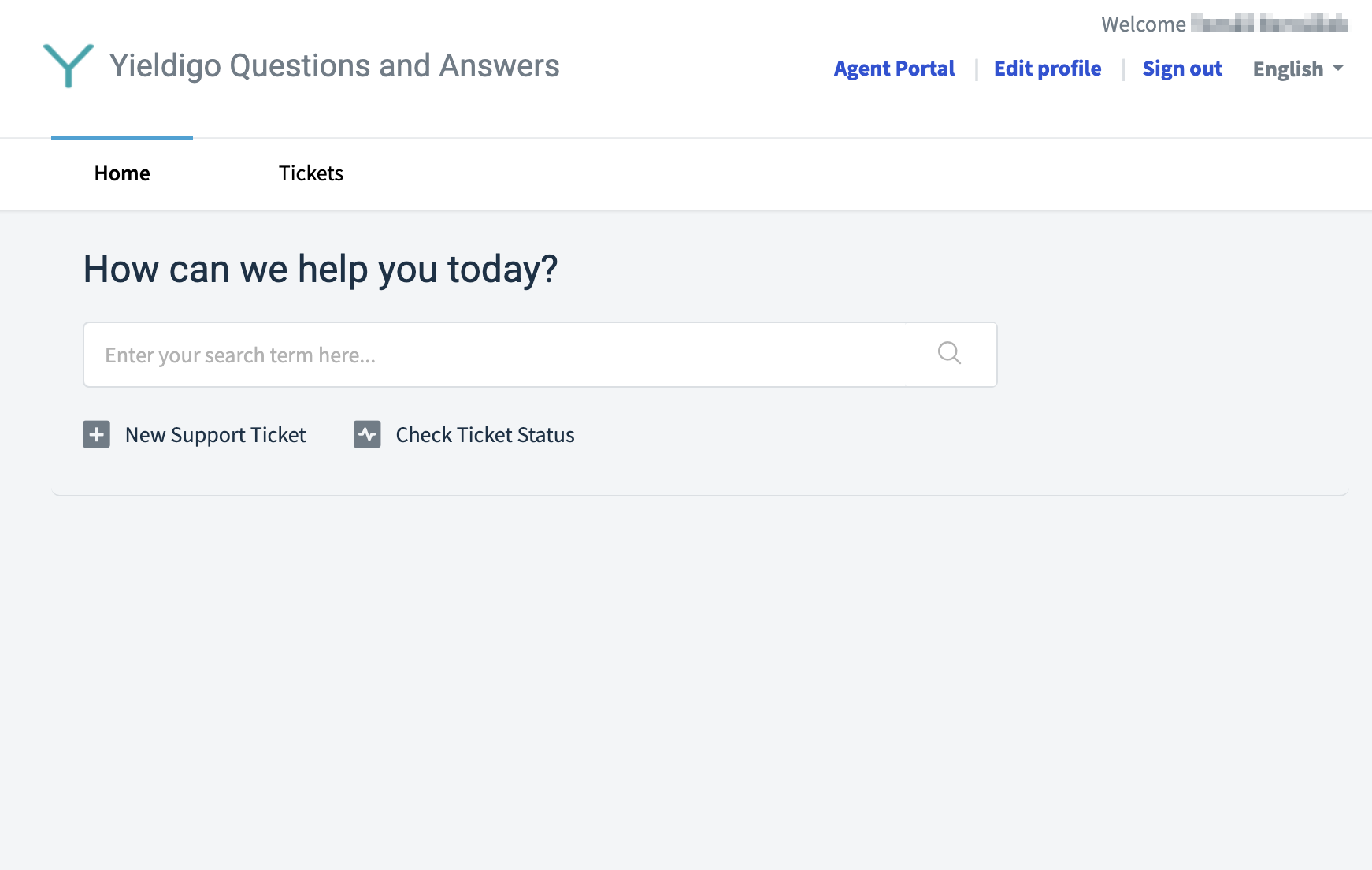
The Yieldigo Support Portal enables you to submit support requests quickly and efficiently. By clicking the **New Support Ticket** button, you can provide key details such as your name, the issue subject, and a description of the problem. You may also upload attachments (e.g., screenshots or logs) to help our support team diagnose and resolve the issue faster.
:::hint{type="warning"}
**Feature Availability**
Available to customers subscribed to **Standard, Premium, and Premium+** support packages.
:::
### Log In and Submit a New Support Ticket
1. Go to the **Yieldigo Support Portal** at [support.yieldigo.com](http://support.yieldigo.com).
2. Log in with your credentials.
3. On the dashboard, click **New Support Ticket**.
4. Fill out the three required fields:
- **Requester** – Your name or the name of the person submitting the ticket (auto-filled in most cases).
- **Subject** – A clear, concise summary of the issue (e.g., *“Dashboard access error: Error 503”*).
- **Description** – Detailed information about the problem, including steps to reproduce, error messages, and any relevant details (e.g., *“Unable to load the dashboard after login, error code 503 appears”*).
5. (Optional) Add attachments such as screenshots, logs, or documents to help describe the issue.
6. Click **Submit** to send the ticket to the support team.
### Check Ticket Status
You can check the progress of your requests at any time by clicking the **“Check Ticket Status”** button. This section lists all tickets you’ve created, along with their current status.
If you are a **domain administrator**, you can also view all tickets within your domain. To enable this option, please contact our support team at [support@yieldigo.com](mailto\:support@yieldigo.com).
**Available ticket statuses:**
- **Open** – The ticket is active and being worked on
- **Pending** – Awaiting action from either support or the client
- **Closed** – The ticket has been resolved and completed
## Communication via Chat
Our support desk chat provides a fast and convenient way to connect with our team in real time. Chat responses are typically quicker than email, but response times are **not covered by SLA claims**.
For complex issues that require detailed investigation, our team will create a standard support ticket to ensure proper handling. SLA terms for chat interactions are aligned with those for email, ensuring consistency across all support channels.
:::hint{type="warning"}
**Feature Availability**
Available to customers subscribed to **Standard, Premium, and Premium+** support packages.
:::
| **Channel** | **Best Suited For** | **Examples** |
| ----------- | ----------------------------------------------------------------------------------- | --------------------------------------------------------------------------------------------------------------------------------------------------------------------------------------------------------------------------------------------------------------------------------------------------------------------------------------------------------------------------------------------------------------------------------------------- |
| **Chat** | Provides quick, real-time assistance for simple issues or immediate clarifications. | – Help with product ID issues
– Troubleshooting problems when downloading Excel files
– Clarifying how to use a specific feature
– Resetting account settings
– Checking the status of a request
– General navigation guidance on the platform (e.g., how to add a manual price) |
| **Email** | Detailed support with complex, technical, or time-intensive inquiries. | – Requesting data analysis for export/repricing
– Changing the format of export reviews or reports
– Submitting requests to modify or review existing workflows
– Adding custom fields or settings to the application
– Reporting a recurring technical issue with detailed logs
– Providing feedback with attached documentation or examples
– Asking for a customized solution requiring technical escalation |
### Expect Timely Responses
We aim to respond to chat requests within the defined Service Level Agreement (SLA) timeframes.
:::hint{type="info"}
**Example**
For critical issues, you can expect a response within **15 minutes**.
:::
### Clear and Direct Queries
State your inquiry or issue clearly in the chat.
:::hint{type="info"}
**Example**
Instead of *“I have a problem”,* provide a clear message such as *“I am unable to access the dashboard and receive error 404.”*
:::
### Receiving Status Updates
During chat communication, our support team will provide timely updates if an issue requires further investigation.
:::hint{type="info"}
**Example**
*“We’re investigating this on our end. We will get back to you within 30 minutes.”*
:::
### If Your Issue Is Escalated
If our first-tier support team cannot resolve your issue, it will be escalated to a specialized team. You will be notified when this happens.
:::hint{type="info"}
**Example**
*“Your issue requires advanced troubleshooting. Our senior technical team will reach out to you soon.”*
:::
### Chat Templates You Can Expect
- **Greetings:** *“Good \[morning/afternoon], how may I assist you today?”*
- **Investigation Updates:** *“We are still investigating your issue and will update you shortly.”*
- **Escalation Notice:** *“Your case has been escalated to our technical team. You will hear from them soon.”*
- **Resolution Check-In:** *“The issue should now be resolved. Could you confirm that everything works as expected?”*